

Su-Swagatam App: India’s Official Tool for the Mandatory e-Arrival Card
Su-Swagatam is the official mobile application by India’s Bureau of Immigration (Ministry of Home Affairs) for submitting the mandatory India e-Arrival Card. Download it free on iOS or Android, fill in your travel details within 72 hours of your scheduled Indian arrival, and receive an instant QR code for immigration clearance. The app is the fastest way to comply with India’s mandatory arrival declaration requirement, active for all foreign nationals and OCI holders since April 1, 2026.
What Is the Su-Swagatam App?
Su-Swagatam (meaning “welcome” in Sanskrit) is the Indian government’s dedicated app for travel-related immigration services. Published by the National Informatics Centre (NIC) under the Bureau of Immigration, it handles the electronic Arrival Card submission and, for eligible nationalities, visa-related services.
The name appears in full as “Indian Visa Su-Swagatam” in the app stores. Both versions – the app and the web portal at indianvisaonline.gov.in/earrival – submit data to the same Indian government immigration system. The output in both cases is identical: a QR code linked to your passport details.
Is the Su-Swagatam App Safe and Official?
Yes. Su-Swagatam is published by India’s National Informatics Centre, the government agency responsible for official digital services. Look for the publisher name “National Informatics Centre” in the app store listing to confirm you are downloading the legitimate version. The app is free – there are no in-app fees for the e-Arrival Card submission.
Su-Swagatam App vs Web Portal: Key Differences
Both the Su-Swagatam app and the website submit the same e-Arrival Card form to the same government system. The core difference is convenience features available only in the app:
| Feature | Su-Swagatam App | Web Portal (indianvisaonline.gov.in/earrival) |
|---|---|---|
| Platform | iOS and Android | Any browser (desktop or mobile) |
| Saved profiles | Yes – save traveler details for faster resubmission | No – re-enter details each time |
| QR code storage | Stored in app; easily accessible offline | Download/screenshot required; no app storage |
| Form content | Identical e-Arrival Card form | Identical e-Arrival Card form |
| Best for | Frequent travelers, families, mobile-first users | One-time travelers, desktop users, last-minute submissions |
| Cost | Free | Free |
| Internet required | To submit; QR viewable offline after saving | To submit; must save QR separately for offline access |
Recommendation: If you travel to India regularly, use the Su-Swagatam app – the saved profile feature saves significant time on repeat submissions. For a one-time trip, the web portal works equally well.
How to Download Su-Swagatam
The app is available on both major mobile platforms:
- iOS: Search “Su-Swagatam” or “Indian Visa” in the Apple App Store. The official app is published by National Informatics Centre.
- Android: Search “Su-Swagatam” or “Indian Visa Su-Swagatam” in the Google Play Store. Published by NIC eGov Services.
The app is free to download and free to use for the e-Arrival Card. Do not install any app that charges a fee – the official Su-Swagatam app is always free.
Note: If the app is temporarily unavailable or shows errors, use the web portal at indianvisaonline.gov.in/earrival as a backup. See our troubleshooting section below.
Step-by-Step: How to Submit the e-Arrival Card via Su-Swagatam
The entire submission takes 5-10 minutes. Have your passport and travel itinerary ready before starting.
Step 1 – Open the App and Select e-Arrival Card
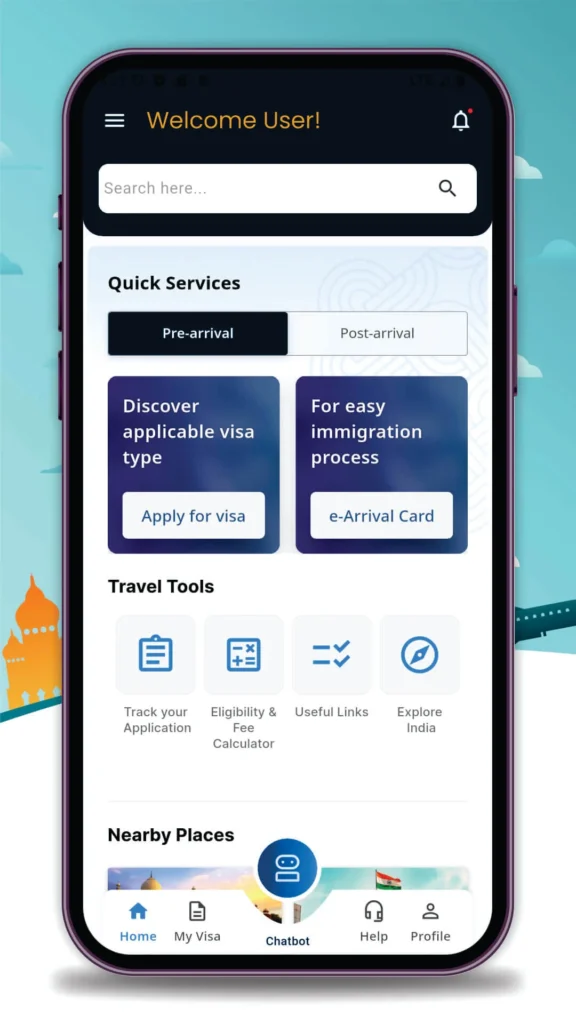
Open the Su-Swagatam app on your phone. From the home screen, select “e-Arrival Card” (not the visa application section). If you have a saved profile from a previous trip, you can pre-fill your details automatically.
Step 2 – Enter Your Passport Details
Enter your passport number exactly as it appears in your passport, including any leading letters. Select your nationality from the dropdown. Enter your passport’s expiry date and issue date. If you hold an OCI card, you will have the option to also enter your OCI card number.
Step 3 – Enter Flight and Arrival Information
Enter your flight number and airline. Select your scheduled arrival date in India and your port of entry (the Indian airport where you land, e.g., DEL for Delhi, BOM for Mumbai, BLR for Bengaluru). Double-check that your arrival date and time are correct – the 72-hour validation is based on this entry.
Remember: you can only submit within 72 hours of this arrival time. See our 72-hour rule guide for exact timing details.
Step 4 – Enter Purpose of Visit and Accommodation
Select your purpose of visit from the available categories (tourism, business, medical treatment, etc.). This should match your visa category. Enter your accommodation address in India – the hotel name and city, or a host’s address for private stays.
Step 5 – Review and Submit
Review all your entered information carefully. Any mismatch between your e-Arrival Card and your passport (particularly name spelling, passport number, or arrival date) may cause issues at immigration. When satisfied, tap Submit.
Step 6 – Download and Save Your QR Code
After successful submission, the app displays your QR code immediately. In the app, this QR code is stored in your submission history and accessible offline. You can also:
- Take a screenshot of the QR code
- Download it as a PDF
- Share it directly from the app
Show this QR code at airport check-in, at the boarding gate, and at the Indian immigration counter. The QR code is scanned alongside your passport at automated immigration counters.
What to Do If the Su-Swagatam App Is Not Working
Technical issues with the app are occasionally reported, particularly during high-traffic periods (holidays, long weekends before/after Indian national holidays). If the Su-Swagatam app is unavailable:
- Use the web portal: Go directly to indianvisaonline.gov.in/earrival in any browser. The form is identical and the QR code output is the same.
- Try a different connection: App issues sometimes relate to VPN or network configuration. Disable any VPN and try again on mobile data or a different Wi-Fi network.
- Clear app cache: On Android, clear the app’s cache from Settings. On iOS, try force-closing and reopening the app.
- Update the app: Check for pending updates in the App Store or Play Store – an outdated version may not connect to current government servers.
Both the app and the web portal connect to the same Bureau of Immigration database. If the web portal is also unavailable, wait and try again – government portal maintenance usually resolves within a few hours.
Frequently Asked Questions
How do I fill out the e-Arrival Card on the Su-Swagatam app?
Open the Su-Swagatam app and select ‘e-Arrival Card.’ Enter your passport number and nationality, then fill in your flight details (flight number, arrival date, port of entry), purpose of visit, and accommodation address in India. Review and submit – your QR code is generated instantly. The process takes 5-10 minutes.
Is the Su-Swagatam app official and safe?
Yes. Su-Swagatam is the official application published by the National Informatics Centre (NIC) under India’s Bureau of Immigration. It is free on iOS and Android. Verify the publisher name ‘National Informatics Centre’ or ‘NIC eGov Services’ in the app store before installing.
What is the difference between the Su-Swagatam app and the indianvisaonline.gov.in website?
Both submit the same e-Arrival Card form to the same government system and produce the same QR code. The app allows you to save traveler profiles for faster repeat submissions and stores your QR codes offline. The web portal requires re-entering details each time and you must save the QR code manually.
How do I get the QR code for my India e-Arrival Card?
After submitting through the Su-Swagatam app or web portal, a QR code is generated instantly. In the app, it is stored in your submission history. On the website, download it as a PDF or take a screenshot. Show this QR code at check-in, boarding, and Indian immigration.
When should I submit the e-Arrival Card in the Su-Swagatam app?
Submit within 72 hours before your scheduled arrival in India – no earlier. The recommended window is 24-48 hours before Indian arrival. Submitting more than 72 hours before arrival results in rejection and forces resubmission.
What if the Su-Swagatam app is not working?
If the Su-Swagatam app is not working, use the web portal at indianvisaonline.gov.in/earrival. The form is identical and the result is the same QR code. Common fixes: disable VPN, clear app cache, or update the app.
Can I submit the e-Arrival Card for my whole family using Su-Swagatam?
Yes. The app supports a consolidated family form covering up to 5 people traveling together on the same flight. All family members must share the same destination and accommodation address in India.
How do I download the e-Arrival Card from Su-Swagatam?
After submitting, the app shows your QR code and allows downloading as PDF or direct sharing. Completed submissions are saved in the app’s history and accessible offline after initial download.
